
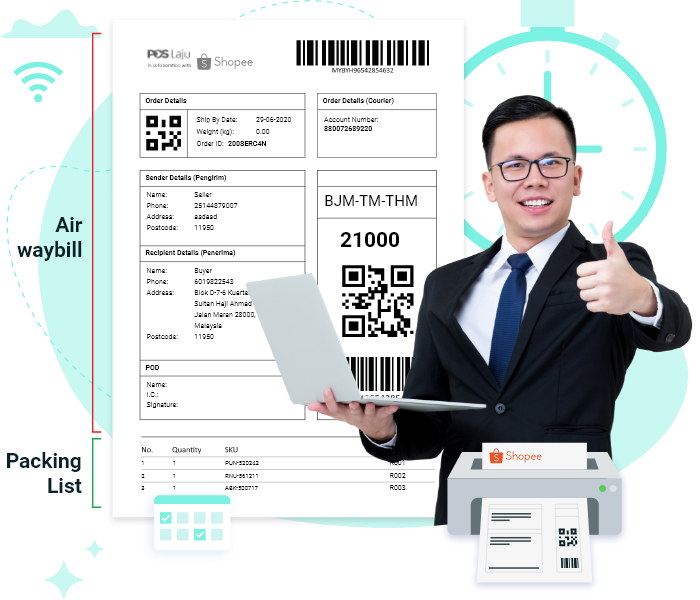

You can directly arrange your Shopee shipment in SiteGiant backend (example: sorting according to courier companies) instead of logging into your Shopee account.

You don’t need to hire additional staff just to do printing and manually match your Shopee shipping labels and packing lists.

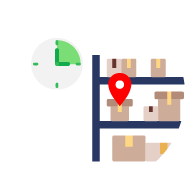
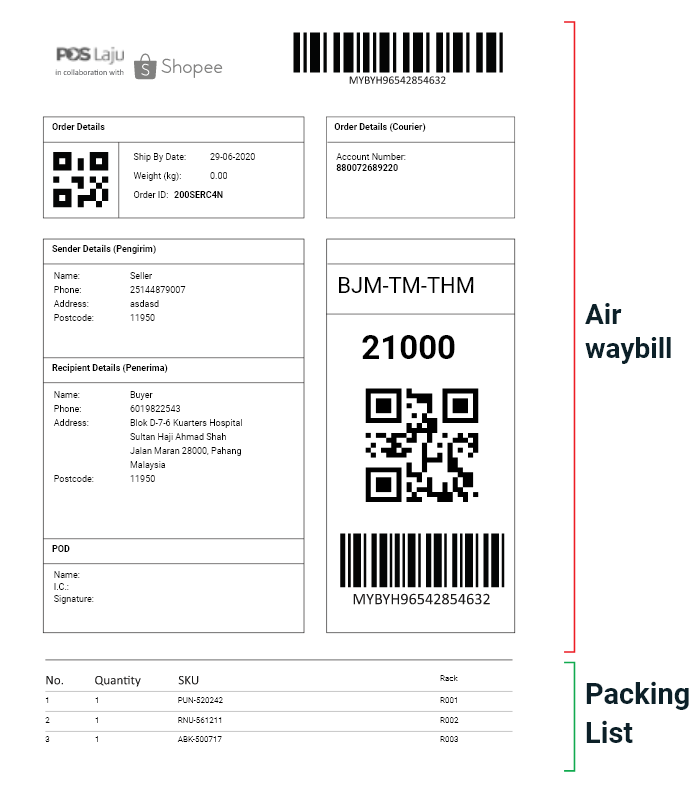
You can also print out rack number in the picking list, speeding up the picking process. Save time when it comes to packing as well since you can reduce the time used to do paper sorting.

Easily print all your shipping labels from various Shopee stores through SiteGiant, without having to log in and out of different Shopee accounts.
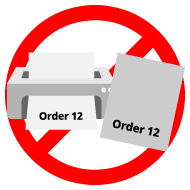
Print Shopee shipping labels together with packing lists without having to print it separately and match it manually.
You can check the printing status of the Shopee orders to avoid double printing.
The rack number of the product is attached together with the packing list, making it easier to locate your items for packing.
You can sort and print the shipping labels by quantity or best selling items so that you just have to pick the same item once.
Your Shopee shipping labels will be stored in SiteGiant, unlike the default Shopee system which will remove the shipping labels after the order has been shipped out.
You can choose to print the shipping labels with only courier company logo or with both courier company and Shopee logos.
This allows dropshippers to change the default sender’s name and phone number before sending out the shipping labels to customers.
Default Shopee system allows only up to 3 items per list, but now you can now print up to 10 items per list.
You can print out your Shopee shipping labels in A6 and quickly get ready for parcel delivery during sales peak season.
You have an option to print out your invoice for filing each time you print your Shopee shipping labels.
By having item quantity and SKU numbers printed on the shipping labels, it helps in the collection of items for packing.